Installation
Taqueria Installation Basics
Installing Taqueria is a quick and easy process if you understand a few basic concepts and follow the steps outlined in this guide
There are two main components to install:
- The Taqueria CLI, an executable binary named
taqinstalled globally in your shell's$PATH - A VS Code plugin installed directly through the VS Code Extension Marketplace
Requirements
Taqueria CLI
VS Code Extension
The VS Code Extension requires a recent version of Microsoft Visual Studio Code which can be installed here
Installing the Taqueria CLI
Overview
Installing the Taqueria CLI involves the following steps:
- Download the correct build of Taqueria for your operating system
- Make the Taqueria binary
taqexecutable - Add
taqto your shell's$PATH
Once these steps are complete, you will be able to run Taqueria from your terminal using the taq command
OS Specific Instructions
- MacOS
- Linux
- Windows
- Download the latest MacOS build of Taqueria
curl -LO https://taqueria.io/get/macos/taq
- Make the binary file executable
chmod +x taq
- Move the binary to a directory in your shell's
$PATH
sudo mv taq /usr/local/bin
- Disable MacOS Gatekeeper to allow Taqueria to run
sudo spctl --master-disable
caution
Currently the taq binary is not signed for Mac OS. In order to run Taqueria, users must disable MacOS Gatekeeper (This is not ideal)
This is a temporary workaround until we can sign the binaries (see #129)
If you want to re-enable the MacOS Gatekeeper later on, run the command
sudo spctl --master-enable
- Download the latest Linux build of Taqueria
curl -LO https://taqueria.io/get/linux/taq
- Make the binary file executable
chmod +x taq
- Move the binary to a directory in your shell's
$PATH
sudo mv taq /usr/local/bin
We recomend Windows users run WSL and follow the instructions detailed for Linux users
caution
A Windows x86_64 binary is available for those who are interested, however this is entirley unsupported and not reccomended
curl -LO https://taqueria.io/get/windows/taq.exe
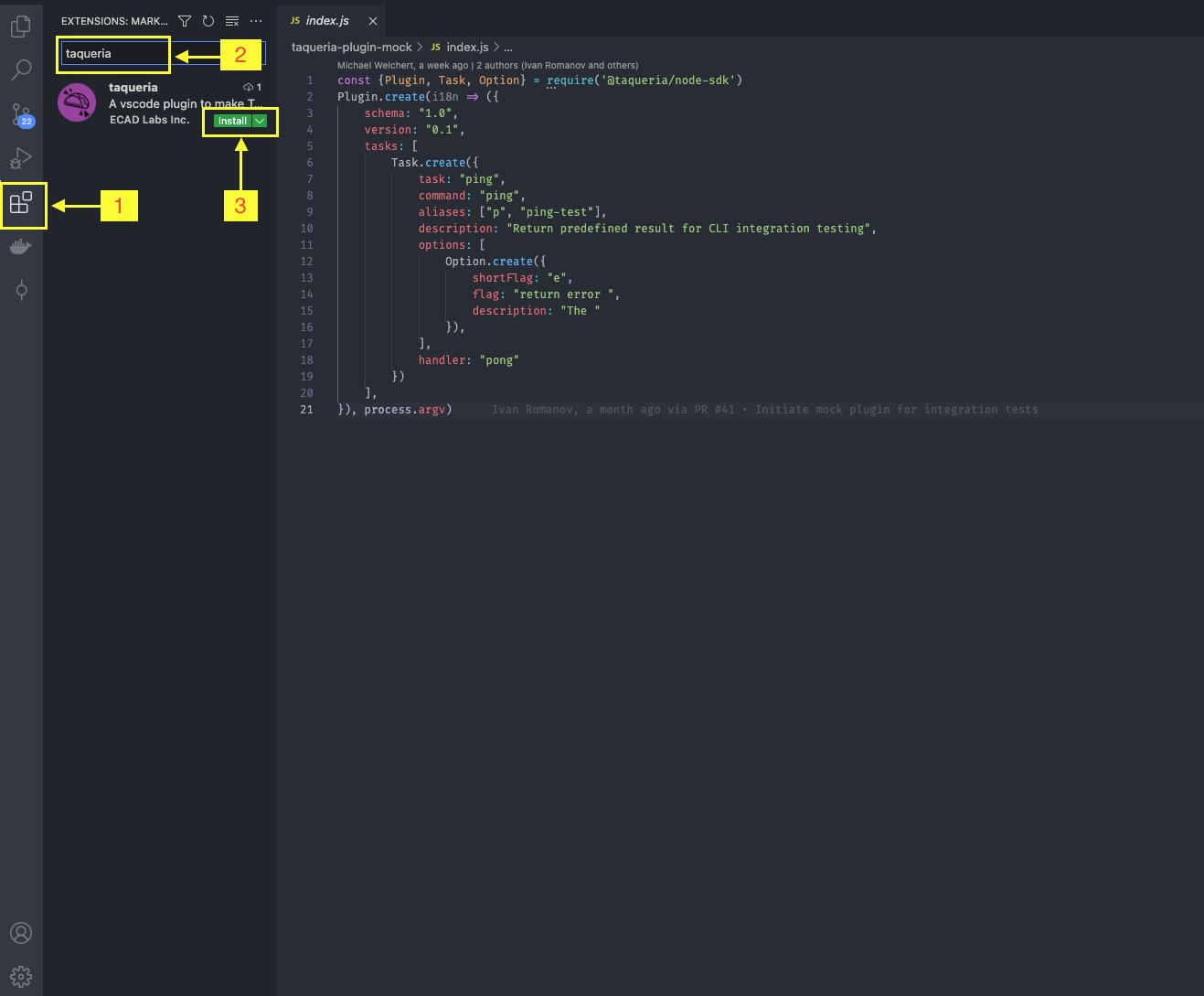
Installing the VS Code Extension
The Taqueria VS Code Extension is installed from the Extensions pane within VS Code. The steps to install are:
- Open the Extensions pane
- Type
Taqueriain the search bar - Click install